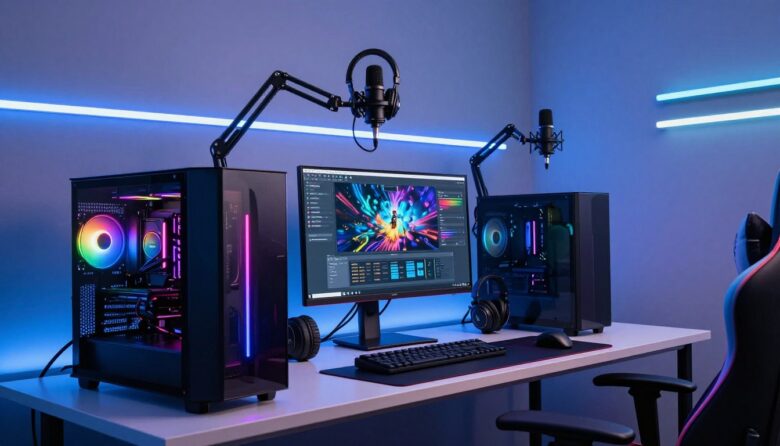
I created this guide because the game streaming industry is booming and now is the right time to raise your production value. The market is projected to hit US$13.65 billion by 2025, so improving your workflow can pay off fast.
When one machine tries to handle high-end games and capture tasks at once, my gameplay and stream quality drop. I explain how moving heavy encoding to a second system preserves high fps and keeps my gaming experience smooth.
This short guide walks through the essential hardware and software choices, from the right CPU and capture card to OBS settings. I also cover how to manage audio and video inputs so games look and sound the way I want.
Key Takeaways
- Offload encoding to protect game performance and maintain high fps.
- Choose the right CPU and hardware for reliable, professional results.
- Configure OBS and streaming software to keep the stream stable.
- Manage audio and video inputs for clear sound and crisp visuals.
- Follow step-by-step settings to avoid common pitfalls and crashes.
Understanding the Benefits of a Dual PC Streaming Setup
Using a second system for broadcasts changed how I play and how viewers watch my games.
Performance gains are immediate. By moving encoding to another machine, my gaming rig can push higher graphics and keep frame rates steady.
Redundancy is another big win. If my gaming system crashes, the broadcast computer keeps the stream live so I can explain what happened and troubleshoot without losing viewers.
- I run competitive titles at max settings and still maintain smooth gameplay.
- Separating tasks means fewer dropped frames and fewer audio hiccups for viewers.
- Overall stream stability improves, which reduces viewer complaints and pauses.
| Role | Main Task | Key Benefit |
|---|---|---|
| Gaming system | Render game and input | Higher fps and responsive gameplay |
| Broadcast system | Encode and send stream | Stable output and redundancy |
| Capture card | Transfer video between systems | Low-latency capture and quality retention |
| Network | Upload and sync | Reliable bandwidth for viewers |
Essential Hardware for Your Streaming Rig
A smart hardware list keeps my games running fast while the encoder does the heavy lifting. I focus on parts that cut latency and protect fps so viewers see clean output.
Gaming PC Requirements
For my gaming desktop I recommend the Lenovo Legion Tower 5i. It ships with an NVIDIA GeForce RTX 3060 and an Intel Core i5-13400F, which handles high graphics and keeps frame rates steady.
Streaming PC Specifications
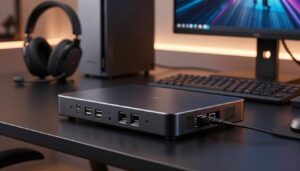
My broadcast machine needs reliable encoding power. The Beelink SEi12 Mini PC with a 12th Gen Intel i5-12450H and 16GB RAM is a compact option that saves desk space without losing performance.
Choosing the Right Capture Card
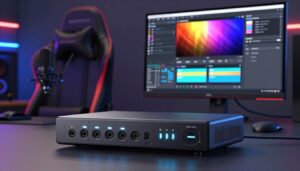
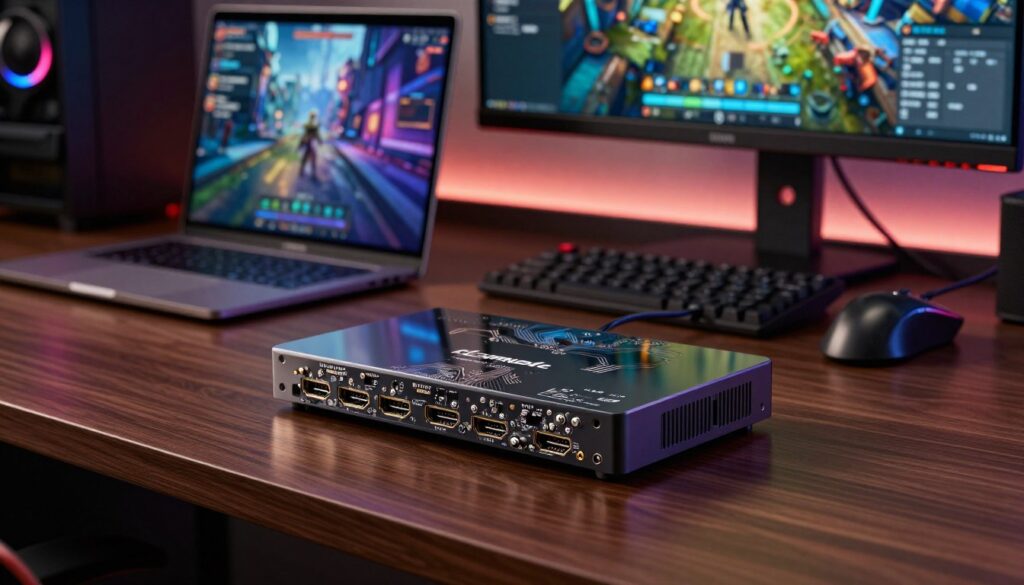
Choosing a proper capture card matters. I use the Elgato HD60 Pro for its PCIe connection and near-zero latency when moving video between systems.
Audio quality is as important as visuals. I route my mic through a mixer or the Elgato Wave:3 and control levels in OBS to keep voice clarity. High-quality capture cards are the bridge that prevents signal loss between two separate systems.
| Component | Example | Why it matters |
|---|---|---|
| Gaming system | Lenovo Legion Tower 5i (RTX 3060, i5-13400F) | Handles graphics; maintains fps |
| Broadcast unit | Beelink SEi12 Mini PC (i5-12450H, 16GB) | Encodes stream; small footprint |
| Capture device | Elgato HD60 Pro | Low-latency PCIe capture |
| Audio | Elgato Wave:3 or mixer | Clear voice and channel control |
Connecting Your Capture Card for Seamless Video
Getting the HDMI routing right is the first step to a clean video feed. I use an Elgato HD60 S+ because it records 1080p at 60fps and keeps latency low.
To connect my gear, I plug an HDMI cable from my gaming GPU into the “in” port on the capture card. Then I run another HDMI from the capture card “out” to my monitor so I keep a direct display with no lag.
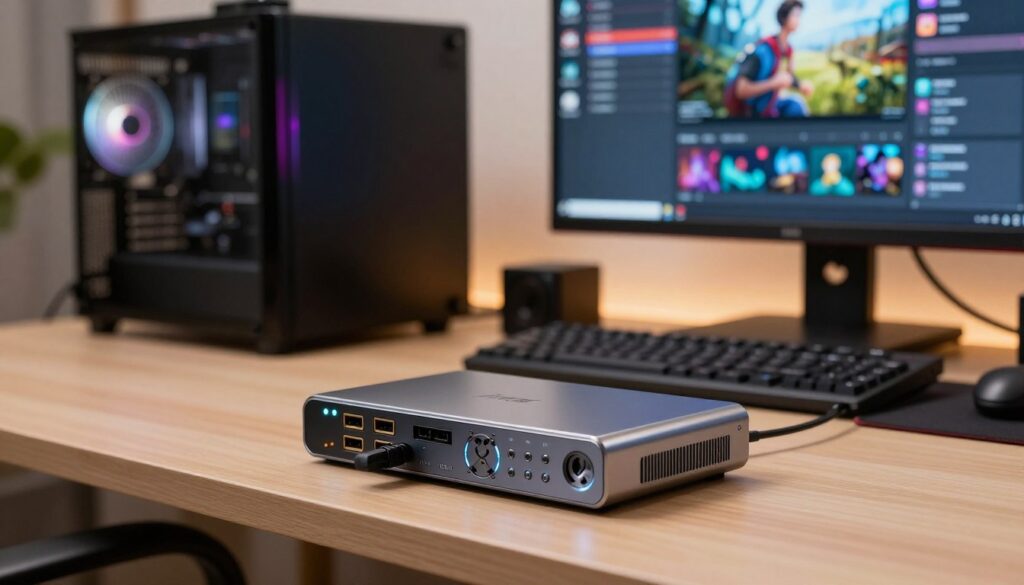
I also connect the USB 3.0 cable from the capture device to my streaming computer to transmit video and audio. Next, I set my gaming display to duplicate the screen so the capture card sees exactly what I see.
- Make sure the monitor is set to 1080p at 60fps to match the card’s capabilities.
- Treat the capture card as a second monitor and lock the cursor with a small script if needed.
- Verify audio output is routed over HDMI so audio and video stay in sync on the broadcast system.
Final check: confirm the capture cards show the feed in your capture app and adjust output settings if frames or audio drop. Proper connections and settings keep fps steady and the stream reliable.
Configuring OBS Studio for Optimal Encoding
OBS gives me full control over how video and audio move from my gaming rig to the broadcast machine.
Setting Up Video Sources
I add my capture device as a new source in OBS so the gaming desktop appears in the preview right away.
I use the full screen projector preview to send the OBS output to the capture card. This ensures the video signal is clean and matches the monitor display on the encoder device.
Adjusting Encoding Settings
On the streaming machine I pick an encoder that balances quality and CPU load. When an NVIDIA GPU is present, I often select NVENC to offload encoding to the graphics hardware.
I keep these quick checks in mind:
- Output mode: Advanced — control bitrate and keyframe interval.
- Choose a bitrate that fits your upload and keeps video quality high.
- Enable audio monitoring and route sound through a virtual mixer so mic and game levels match.
Final tip: test the capture cards and OBS options before going live. Small tweaks to encoder settings and audio routing stop sync issues and give a smoother stream.
Managing Complex Audio Routing Between Systems
Keeping game and mic audio separate but synced is where most setups win or fail. I use a simple, repeatable method so my listeners never hear echoes or drops.
Utilizing Virtual Audio Cables
I rely on Voicemeeter Banana to create virtual audio cables between my two pcs. It shows each input and lets me route desktop sound and mic channels to different outputs.
I connect my mic through a UR12 USB Audio Interface. This gives me clean mic gain and a loopback option to send desktop audio to the broadcast machine without added latency.
In OBS on my gaming desktop I enable the Audio Monitor plugin to send filtered mic audio to the capture device. The streaming computer then treats that feed as an audio capture source and mixes it with the video input.
- I avoid passive splitters because they reduce level and clarity.
- Use a dedicated mixer or Voicemeeter for flexible leveling and effects.
- Always test levels and make sure the capture card is receiving both mic and desktop sound before going live.
Fine Tuning Your Stream Performance
Small tweaks to display and encoder settings often yield the biggest improvements in my broadcast quality.
I start by checking display settings so my gaming desktop outputs the correct resolution and fps to the capture card.
Next, I monitor GPU and CPU usage on both pcs to confirm encoding options aren’t causing lag. If the numbers spike, I lower bitrate or change encoder options.
I use a stream deck to toggle overlays and scenes. That keeps my gameplay focused and cuts in-stream fumbling.
- Apex Gaming PCs work well here because they support Elgato and AVerMedia capture cards.
- I tweak mic filters and mixer channels; small audio changes boost perceived quality a lot.
- If video looks soft, I raise the capture device bitrate or check HDMI and source resolution.
Finally, I test new streaming software options and record short clips. Those quick tests let me lock in settings that deliver steady fps and clean output for viewers.
Conclusion
To conclude, focus on practical tweaks that protect gameplay and polish your live output.
I know upgrading to a dual system is a real commitment, but the rewards in production value and viewer trust are worth it. Offloading encoding keeps my game smooth and my stream stable during heated moments.
Pay attention to capture hardware, reliable software, and correct audio routing. Get your mic levels right, and use a good mixer or virtual cables to avoid echoes.
Take your time with the whole setup. The patience you invest now will improve your final output and let you focus on entertaining your community.
FAQ
What is the main advantage of using a second computer for streaming?
Do I need a capture card, and which one should I pick?
How do I physically connect the consoles and displays between systems?
What OBS settings should I start with on the encoder PC?
How do I route game sound and microphone between both systems?
Can I use a GPU to handle all encoding instead of CPU?
What network requirements should I meet for a smooth stream?
How do I reduce latency and maintain high FPS while capturing?
Are there recommended software tools beyond OBS for audio and routing?
What troubleshooting steps fix a black screen from the capture card?
How do I balance stream quality and viewer accessibility?
Can I stream multiplayer from the gaming machine while recording locally?
What hardware specs should the streaming computer have for 1080p60 using NVENC?
How do I manage audio delay between game and mic?
What capture card options exist for PCIe versus USB?
How often should I update drivers and streaming software?

Lucas Bennett is a video capture and streaming expert who specializes in helping creators build high-performance setups. He shares in-depth reviews, setup guides, and optimization tips focused on capture cards and real-time video production, making complex tech simple and effective.