I know how frustrating it is when video looks uneven or drops frames during a live stream or recording. I built and tested systems from an i9-10900kf with an RTX 2080 ti to a laptop with an i7-7700hq and GTX 1070 to track where problems hide.
Many glitches only show up when you push to 60fps or higher. I walk you through quick Windows checks like the Task Manager Startup tab, using the TestUFO motion test, and tuning encoding and frame rate so your preview matches the display.
My goal is simple: help you pinpoint whether the issue is GPU, settings, or background processes and get your output smooth for streaming and recording.
Key Takeaways
- Test frame consistency with tools like TestUFO to spot micro-stutter.
- Check Startup apps in Windows to remove background load affecting your stream.
- Match monitor refresh rate, frame rate, and encoding to avoid dropped frames.
- High-end hardware can still hit bottlenecks at 60fps—tune settings, not just gear.
- Verify your display source and preview to confirm smooth recording output.
Understanding the root causes of capture issues
Intermittent frame drops and jumps often show up when you expect smooth motion at higher frame rates. I want you to see where the problem lives before you change settings blindly.
Common visual artifacts
Types to watch for
- Micro-stutter: tiny skips that appear only at 60fps and above.
- Tearing: horizontal splits when the monitor and frame rate misalign.
- Dropped frames in a recording or stream, which show as pauses.
Why it matters
These issues hurt viewer experience and can ruin recordings you plan to upload as original content.
I’ve seen the same problem on a Ryzen 7 2700X with a GTX 1080 and 32GB RAM. That tells me the issue can be independent of raw hardware power.
Community logs often help. If you click expand on your OBS log, you can spot if a frame drop is caused by windows background tasks, encoding overload, or an external source problem.
Initial assessment of obs capture card stuttering
Start by isolating the video source. Create a fresh Scene Collection with only one video source and no extra audio. This simple test often reveals whether the capture card or your scene setup causes the stutter.
I also recommend testing the same device in the Windows Camera app. If the problem appears there, the issue is likely hardware or a driver and not just software.
Try connecting the console or PC directly to a TV. Seeing the signal clean on a monitor or TV makes it easier to rule out a failing card or bad cables.
On my i7-7700hq laptop the stutter was present but milder than on my desktop. If you still see trouble, check behavior when you are not recording or streaming. That narrows whether the lag is tied to recording or to background processing.
- Quick tip: If you click expand in your log files, you can spot frame-rate or buffering errors that point to the real problem.
- Run this clean test before you change settings. It saves time and helps people fix recordings they want to upload as original content.
Optimizing your Windows startup environment
A cluttered startup can quietly drain CPU and ruin your game and recording performance. I start here because it’s fast and often fixes the root problem.
Cleaning up background processes
Open the Task Manager and go to the Startup tab. Look for apps that you do not need while streaming or playing a game.
Disable those items to free CPU and memory for your main tasks. Many users report conflicts that lead to frame drops and other problems.
- I always clean the Windows startup to prevent apps from interfering with recording.
- Spend a few minutes to disable nonessential programs before you start streaming.
- If you click expand on a startup entry, you can see its full path and judge necessity.
| Startup Item | Recommended Action | Expected Impact |
|---|---|---|
| Cloud sync tools | Disable at startup | Frees CPU during game and streaming |
| Auto-updaters | Set to manual | Reduces background IO and crashes |
| Communication apps | Enable only when needed | Less memory use, fewer interruptions |
Review your startup list periodically. A lean Windows environment saves you time and protects your recordings from avoidable problems.
Adjusting OBS scene collection settings
Start with a fresh scene collection to see if your current layout is the source of dropped frames. A clean setup makes it easy to isolate a bad source or a heavy filter that harms capture performance.
Simplify by removing extra overlays and browser sources. Then add your primary sources back one by one. This step often fixes problems during streaming and recording without deep tuning.
Match your fps and output rate to the project. If your video project requires 30 or 60 fps, set the scene and encoder to the same rate. That prevents desync and odd frame jumps.
- I suggest you try a new scene collection first and test the stream in a controlled room.
- Spend time experimenting with settings until your hardware handles the load without dropped frames.
- I’ve seen many users improve recording quality by rebuilding scenes and re-adding sources carefully.
- If you click expand on the settings menu, fine-tune output to match your CPU and GPU limits.
| Action | Why it helps | Quick result |
|---|---|---|
| Create new scene collection | Removes hidden conflicts and heavy sources | Faster diagnosis of capture issues |
| Simplify sources | Reduces CPU/GPU load during streaming | Smoother video and fewer dropped frames |
| Match fps and rate | Prevents desync between source and output | Cleaner recordings and consistent frame timing |
Testing hardware connectivity and cables
A fast way to rule out hardware faults is to bypass the PC and feed your source directly to a TV or monitor. I use this simple test first because it separates signal problems from software settings.
Direct TV connection tests
Plug the device into a TV and watch the output for a few minutes. If the feed runs clean, the issue likely lives in the capture path or PC setup.
When you connect to a monitor, confirm the resolution and refresh rate are detected correctly in Windows. Wrong detection can cause visible tearing or a stutter on-screen.
If you click expand on your hardware diagnostic tools, you can often spot signal drops or handshake errors that point to a bad link.
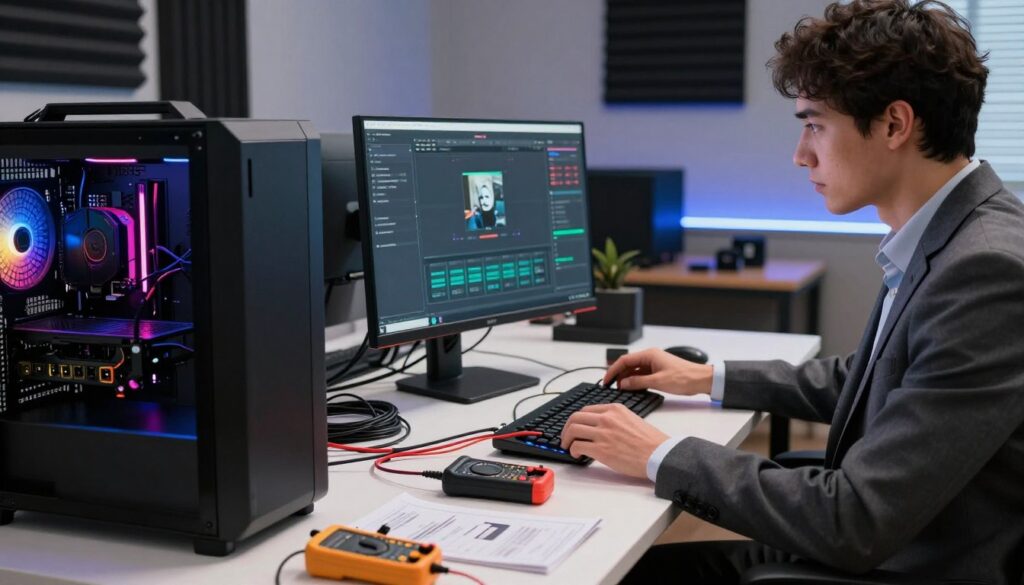
Bad HDMI or DisplayPort cables cause more problems than people expect. I recommend swapping cables and testing with a known-good lead.
Also, ensure any PCIe cards are seated firmly. Loose cards produce intermittent dropouts that look like random stutter to viewers.
| Test | What to look for | Quick fix |
|---|---|---|
| Direct TV output | Clean motion, correct resolution/refresh | Bypass PC if clean; focus on capture path if noisy |
| Cable swap | Noise, tearing, or frame loss | Replace with high-quality cable |
| Reseat PCIe cards | Intermittent signal drops | Power down and firmly reseat card |
- I test multiple cables to ensure the capture card receives a clean signal.
- Spend a little time checking cable integrity; it often saves you a lot of time later.
- Securely connected cards and verified displays eliminate many common problems fast.
Evaluating GPU driver stability
I check the GPU driver early because driver faults can mimic hardware failures. I once ran a full reinstall with DDU and still saw the same issue, so a clean install is only one step.
Clean installs often fix corrupted files. Download the latest package from NVIDIA or AMD and remove old files with DDU when possible. Then install the fresh driver and restart Windows.
Watch your GPU while you run a session. Use a performance monitor to spot crashes or sudden drops in clock speed. That problem pattern tells you if the driver is unstable under load.
“Many users find that a DDU clean reinstall resolves driver issues that simple updates miss.”
- I recommend checking vendor forums for reports of the same issue on your model.
- If problems persist, try an older driver build to see if a recent update introduced the fault.
- If you click expand on Device Manager, look for warning icons or error codes that point to driver corruption.
| Action | Why it helps | When to try |
|---|---|---|
| DDU clean uninstall | Removes leftover files that can cause conflicts | When repeated errors or crashes appear |
| Install latest driver | Patches known bugs and improves performance | After DDU or if stability improved in recent release notes |
| Roll back driver | Confirms if a new build introduced the problem | If instability starts after an update |
Managing primary GPU assignments in BIOS
Booting into BIOS to verify which GPU is active often saves hours of troubleshooting later. I recommend making sure your dedicated GPU, like an NVIDIA 4070, is set as the Primary GPU so your game runs on the hardware you expect.
Why this matters: many systems default to integrated graphics and the result is a clear performance issue. That problem shows as lag, frame drops, or inconsistent frame pacing when you play or stream.
Spend a little time in BIOS after major hardware changes. If you disable the iGPU, the system must use the dedicated gpu for all rendering. This simple change often resolves the same issue users report when Windows switches processors mid-session.
“Set the dedicated GPU as primary in BIOS to avoid silent switching that harms performance.”
- I suggest you verify the setting and, if needed, disable the iGPU.
- If you click expand on the BIOS menu, you can confirm the primary device quickly.
- Doing this once saves you time and prevents a common problem that hurts game responsiveness.
Disabling integrated graphics for better performance
If Windows keeps switching between GPUs, you can get odd frame timing during a game.
I recommend disabling the integrated graphics (iGPU) in the BIOS to force the system to use only the dedicated gpu. This often fixes a common performance issue where Windows hands off tasks to the weaker chip.
Why it helps: forcing the dedicated gpu reduces silent handoffs that create uneven frame pacing. Many users tell me their stuttering problem vanished after they turned the iGPU off in BIOS.
Before you reboot, make sure your monitor cable is plugged into the dedicated GPU port and not the motherboard output. If the display remains on the wrong output, you will still see the same problem.
- I suggest you try disabling integrated graphics in BIOS and then test your game performance for a few minutes.
- Take time to verify the monitor is connected to the dedicated gpu to avoid display problems.
- If you need to check settings in detail, click expand on the BIOS menu to find the integrated graphics toggle.
“Disabling the iGPU forces consistent use of the dedicated GPU and can stabilize frame rates.”
Comparing capture software behavior
I ran the same source through three different apps to see where the lag really lived.
I tested XSplit and Action! alongside my main recorder to find the root problem. Action! was buttery smooth on my test rig. That told me the issue might be tied to the software’s handling of the source, not the HDMI link.
Try other programs for a short time to spot patterns. If the stutter shows in every app, suspect Windows, drivers, or hardware. If only one program shows the problem, you can narrow your troubleshooting to that software’s settings or plugins.
- Tip: Test the same source and settings across each program to make the comparison fair.
- Keep notes and click expand on your logs to record which app had which issue.
- People are often surprised that a problem persists across software—this points to a deeper system-level problem.
Spend the time to test. The idea is simple: isolate whether the video problem is app-specific or a system-wide issue before you change hardware or reconfigure everything for your upload original content workflow.
Analyzing frame rate consistency
A steady fps curve reveals the exact moments your game trips over frame pacing. I use simple logging tools to track fps and spot drops that match visible stutter.
Even small dips matter. A single 2–5 fps drop at 60fps can create a jarring stutter that viewers notice immediately. High raw fps does not guarantee smooth output if pacing is uneven.
Monitor over time and look for patterns. If the rate dips at the same time each session, that points to a repeatable issue like a background task or in-game event.
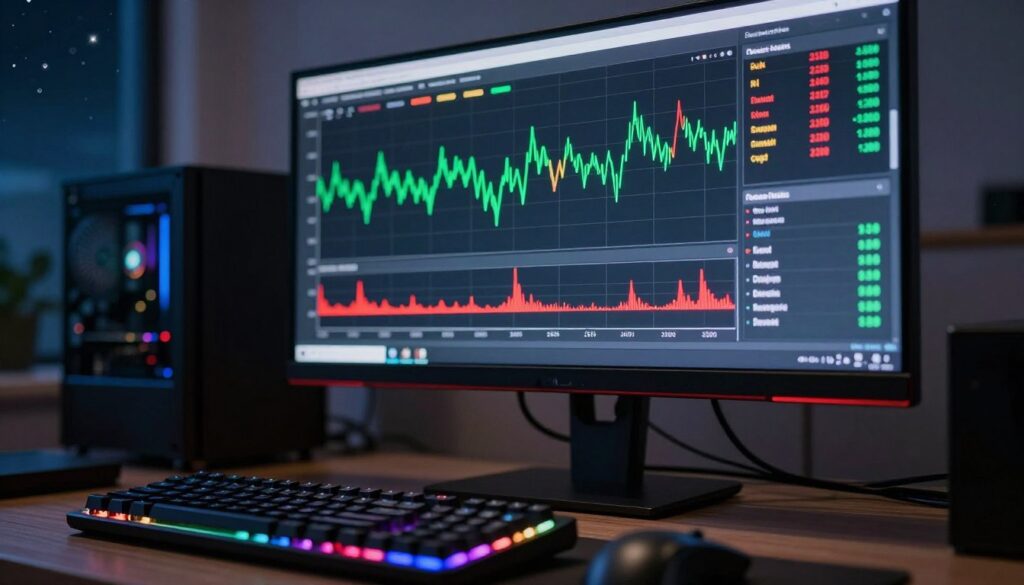
Use performance tools and click expand on graphs to reveal spikes and and micro-dips. Export logs when possible so you can compare sessions side by side.
| What to track | Why it matters | Quick action |
|---|---|---|
| Average fps | Shows overall throughput | Set target (30/60) and match encoder |
| Frame timing variance | Reveals pacing problems | Adjust graphics or background apps |
| Timestamped drops | Links dips to events in-game | Test with that scene or asset removed |
Track regularly. Keeping a steady frame rate keeps your recordings smooth and your game feeling responsive.
Investigating potential encoding bottlenecks
You can have a rock-solid game performance and still see drops in the output if encoding is bottlenecked.
Start by checking the obs log files for warnings about encoding lag or dropped frames. Those entries point directly to a load problem rather than a GPU hardware fault.
Many users report low GPU usage while their recordings show buffering or visible lag. That often means the encoder settings are inefficient for the chosen bitrate or frame rate.
- Compare encoder type (hardware vs software) and lower bitrate to test stability.
- Match fps and output rate so the encoder isn’t translating between rates during a stream.
- Watch for buffering messages in logs during a test recording.
“Optimizing encoding settings often removes the bottleneck without swapping hardware.”
| Action | Why it helps | When to try |
|---|---|---|
| Lower encoder bitrate | Reduces GPU/encoder load | If logs show buffering or lag |
| Switch encoder mode | Tests software vs hardware path | When GPU appears underused |
| Match fps/output | Prevents frame conversion overhead | When frame timing issues appear |
Checking for render lag in the preview window
A jittering preview often reveals rendering strain long before your final recording shows signs.
I watch the preview during a session to spot any preview lag that might point to a GPU or encoder problem.
Sometimes the game runs at a steady fps, yet the preview stutters. That mismatch usually means the renderer or encoder is overloaded even if the game feels fine.
Keep the preview visible while you test. If you see buffering or dropped frames in the preview, pause and check the log for encoder warnings.
- Simplify scenes: remove overlays and browser sources to lower render load.
- Monitor fps and frame rate: compare game fps to preview output to spot variance.
- Adjust settings: lower output rate or switch encoder modes if preview shows constant lag.
“If the preview stutters, treat it as a clear sign to tweak rendering or encoding before you stream or record.”
Verifying display capture versus video source
Switching the source you use for recording often pinpoints whether the system or the signal causes preview lag.
I test both display grabbing and a dedicated video input to compare results. Display capture can be convenient, but on some systems it adds extra work for the renderer and leads to visible buffering or a skipped frame.
When possible, plug the console or camera into a capture card as a dedicated video source and add that source in OBS. In many cases the dedicated input is steadier than a full display grab.
Try a short recording with each method and watch the preview closely. If the preview looks smoother from the video input, you’ve found a clear upgrade path.
- Verify whether you are using a display grab or a dedicated input in the source properties.
- Test both methods for a few minutes to compare frame rate and any buffering.
- If the dedicated input wins, ensure the capture card drivers and ports are configured correctly.
“Switching from a display grab to a dedicated video source often removes unexpected lag in the preview.”
Running external test patterns for smooth motion
External test patterns strip away gameplay variables and reveal true frame timing. I use tools like TestUFO to force steady motion so tiny stutters show up clearly.
Run a few passes at 60fps and 120fps while watching the preview on your monitor. This helps you compare the display output to what your capture device records.
Test both display capture and a direct video source. In many systems the display grab looks fine, but the capture card shows micro-drops in the recorded frames. Testing separately tells you which device or source needs work.
- I suggest you run external test patterns to confirm if your capture card is processing motion smoothly without any stutter.
- Spend time comparing fps and frame rate in the preview and in saved files to spot lag or buffering.
- Many people use these tests to tune encoder and stream settings for stable video output.
“If you click expand on your test results, you can see exactly where frame rate dips happen.”
Seeking community support and developer feedback
Posting a clear log and a short video clip usually gets faster, more accurate help from devs and users.
Be thorough: list your hardware, software versions, the game and display settings, and every test you ran. That context helps people reproduce the issue and offer precise advice.
Where to ask: Discord servers, Reddit threads, and vendor forums are the best places to share your problem. Many developers check those channels and reply when you include detailed logs.
“Developers and experienced people often respond quickly if you provide clear logs and a short sample video.”
- I recommend you post steps you already tried so helpers don’t repeat advice.
- Attach timestamps, test results, and a note to “click expand” on any logs you share for extra detail.
- Share your idea and findings back with the community to help others with similar device or card issues.
| What to include | Why it helps | Expected reply |
|---|---|---|
| Full logs and timestamps | Shows encoder or buffer errors | Developer can point to exact fault |
| Short video or sample file | Demonstrates visible tearing or frame drops | People test settings and suggest fixes |
| Hardware and display list | Identifies device-specific problems | Community suggests known workarounds |
Conclusion
Wrapping up, I hope this guide helped you fix common capture and recording issues and improved your streaming experience.
I recommend testing one setting at a time and noting results in a short log. This steady approach finds whether a device, Windows process, or a mismatched rate causes visible lag or buffering.
Be patient: troubleshooting is a process of elimination. If you still see problems, post clear logs and a short sample so other people can offer precise help.
Thanks for reading. I wish you smooth video output and reliable recordings for every stream and creative post.
FAQ
What causes screen tearing, stutter, and visual artifacts when capturing gameplay?
How do I diagnose whether the problem is software or hardware?
Which visual artifacts should I look for and what do they indicate?
How can I clean up my Windows startup to reduce interference?
What scene collection settings help maintain smooth playback and recording?
How do I test direct TV connections to isolate the issue?
How important is cable integrity, and what should I check?
How do I confirm GPU drivers are causing instability?
Should I change primary GPU assignments in BIOS to help capture performance?
Does disabling integrated graphics improve reliability?
How helpful is testing alternate capture software across platforms?
How do I measure and improve frame rate consistency?
What encoding bottlenecks should I investigate first?
Why does the preview window show render lag even when the recording looks fine?
How can I verify display capture versus a dedicated video source for smoother motion?
What are external test patterns and how do they help?
Where can I find community advice or report issues to developers?

Lucas Bennett is a video capture and streaming expert who specializes in helping creators build high-performance setups. He shares in-depth reviews, setup guides, and optimization tips focused on capture cards and real-time video production, making complex tech simple and effective.