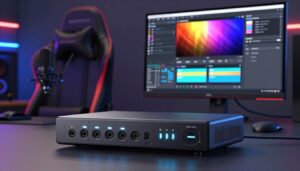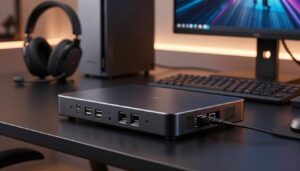
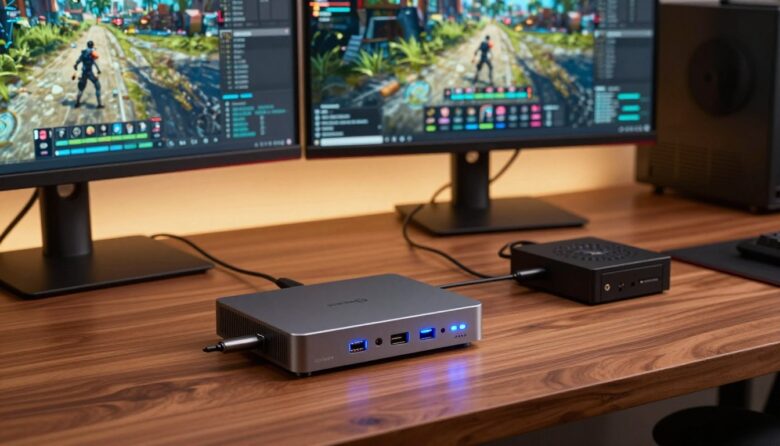
I rely on my setup to keep gameplay smooth while I stream. I use a professional device so my audience sees high-quality video and I feel no delay.
Using a reliable capture card passthrough lets me play on a console or PC with zero lag while I record or broadcast. I choose gear that supports 4K60 HDR to match the original resolution frame rate.
I run an Elgato capture card in my rig to manage audio and video without sacrificing performance. I also check detailed information about frame rate combinations so my captured resolution frame matches the output from my PS5 or PC.
When settings are right, I stay competitive and keep my stream looking pro. This guide will show why passthrough matters and how to minimize latency for high-quality gameplay recording.
Key Takeaways
- A good passthrough keeps gameplay responsive while you stream or record.
- Choose devices that support 4K60 HDR for crisp video quality.
- Elgato capture cards are a common pro choice for audio and video flow.
- Verify frame rate combinations to avoid mismatched resolution output.
- Minimizing latency helps you stay competitive and keeps viewers happy.
Understanding Capture Card Passthrough
When I route a console through a pro device, the live feed stays smooth and responsive. This section explains how a single link can feed both your monitor and your recording setup without costing you input time. I’ll walk through the split and the HDMI role so you know what to check.
How the Signal Splits
Inside my Elgato capture card the HDMI signal splits so one output goes straight to my display while another stream goes to my PC. This design lets me play on-screen with no visible lag.
Benefits I see:
- Raw feed to monitor keeps gameplay responsive.
- Processed feed goes to recording and streaming software.
- High-bitrate recording stays ready for pro editing.
The Role of HDMI
HDMI carries video and audio together, so a stable cable and correct rate settings matter. I use quality links and the right hdmi mode to keep audio and video synced during long sessions.
Nilson has used Elgato capture cards since 2016, proving this setup works for pro-level streaming and HDR play on the Switch.
Why Input Lag Ruins Your Gaming Experience
A tiny delay between my button press and the on-screen reaction can cost me a match. In fast shooters and fighting games, timing is everything.
I always use a dedicated capture card because even a few milliseconds of lag wrecks muscle memory. When I play on my Switch, the passthrough keeps my reactions synced with the display so I don’t miss crucial windows.
My experience with game capture proves that delayed video feeds make consistent play impossible. Software-only solutions often add latency that interrupts aim and combos.
I prioritize HDR support so my streaming audience sees the same vibrant colors I see on my monitor. Routing the signal through hardware stops software-based delays and keeps my gameplay pure.
- Low latency preserves timing and skill.
- Hardware routing avoids software lag spikes.
- HDR support improves viewer experience during streaming.
| Issue | Effect on Play | Practical Fix |
|---|---|---|
| Input lag | Missed windows, poor aim | Use dedicated capture card and low-latency monitor |
| Software delay | Stuttering, delayed video | Route signal through hardware encoder |
| Poor color | Muted visuals for viewers | Enable HDR passthrough and correct output settings |
| Unstable HDMI | Frame drops or sync issues | Use high-quality HDMI cables and correct bitrate |
How Passthrough Technology Keeps You Competitive
Playing at a pro level means every millisecond matters when I’m on my xbox series. The right passthrough system lets me move, aim, and react with the same timing I expect from a bare console.
Ultra-Low Latency Benefits
I rely on the 4K Pro device because it records up to 240fps while keeping ultra-low latency. That high frame rate gives me smoother replays and more precise inputs during clutch moments.
Using high-quality HDMI with my capture cards is essential. A stable cable preserves the low latency I need for fast shooters and fighting game combos.
HDR support matters too. My stream broadcasts xbox series gameplay with richer color and the same rate settings I see on my monitor. Whether I’m on a switch or an xbox series console, passthrough tech keeps the video feed responsive so my performance never drops.
- 240fps recording for smoother motion and better analysis.
- Instant input registration keeps me competitive in ranked play.
- HDR and proper rate settings preserve visual fidelity for viewers.
Achieving High Fidelity Gameplay Recording
I make sure my recordings reflect the same smooth motion and color I see while I play. That starts with a solid workflow that keeps video and audio in sync.
I use Elgato capture software to preserve every detail while I stream. Open elgato studio helps me route tracks, set bit rates, and monitor levels without interrupting live sessions.
- I set the resolution frame rate to match the game so the captured resolution frame is accurate for editing.
- I enable 4K60 HDR when available so my raw files hold color and depth for post production.
- I use the slide-back-in-time buffer to grab unexpected moments without stopping the stream.
The difference game capture makes is clear when I compare raw footage to standard recordings. Proper setup reduces rework and keeps my final edits crisp and natural.
Compatibility Across Modern Gaming Consoles
My equipment must work seamlessly across consoles so I can switch games without fuss.
Pro-level support matters when I stream and record. I use an Elgato device that supports PS5 4K120 so Tschuki’s setup finally gets the most out of the console while recording.
Support for PlayStation and Xbox
I verify resolution frame rate and frame rate combinations before a session. That prevents mismatches when I record PS5 or Xbox Series gameplay.
Elgato capture cards and newer models handle high rates and HDR, so I don’t lose quality during live streaming or later editing.
Nintendo Switch Integration
My setup includes Switch support so handheld sessions stream with minimal fuss. I route HDMI from the dock and check rate settings to keep video smooth.
Mobile and Handheld Devices
I also test phones and portable consoles. Some devices need adapters or specific frame rate combinations to record correctly.
“Always check detailed information on compatibility before you add a new device to your workflow.”
- Tip: Use HD60 or pro models in the Elgato game capture ecosystem for broad compatibility.
- Check HDMI and resolution frame rate settings for each device.
Optimizing Your Streaming Setup with OBS
I tune OBS to send clean video to both my stream and my local recordings without extra lag. I connect my Elgato game capture device to OBS and set one source for live output and another to record a master file.
Open Elgato Studio helps me preview and adjust HDR and color before the feed hits OBS. That way my viewers get the same visuals I see on my monitor.
I use OBS to route the feed to multiple destinations. This lets me stream while I also record high-quality footage for edits. It keeps my Switch sessions ready for YouTube uploads.
My Elgato capture cards are the backbone of this workflow. They stay reliable during long streams and simplify bitrate and HDR settings.
- Set device HDR profile in the app and mirror it in OBS.
- Use separate scenes for streaming and recording to avoid bitrate conflicts.
- Monitor CPU and encoder load to keep video smooth.
| Task | Tool | Best Practice |
|---|---|---|
| Preview HDR | Open Elgato Studio | Match HDR profile in OBS before live |
| Multi-destination | OBS | Use stream and local record outputs |
| Hardware | Elgato capture cards | Check firmware and USB bandwidth |
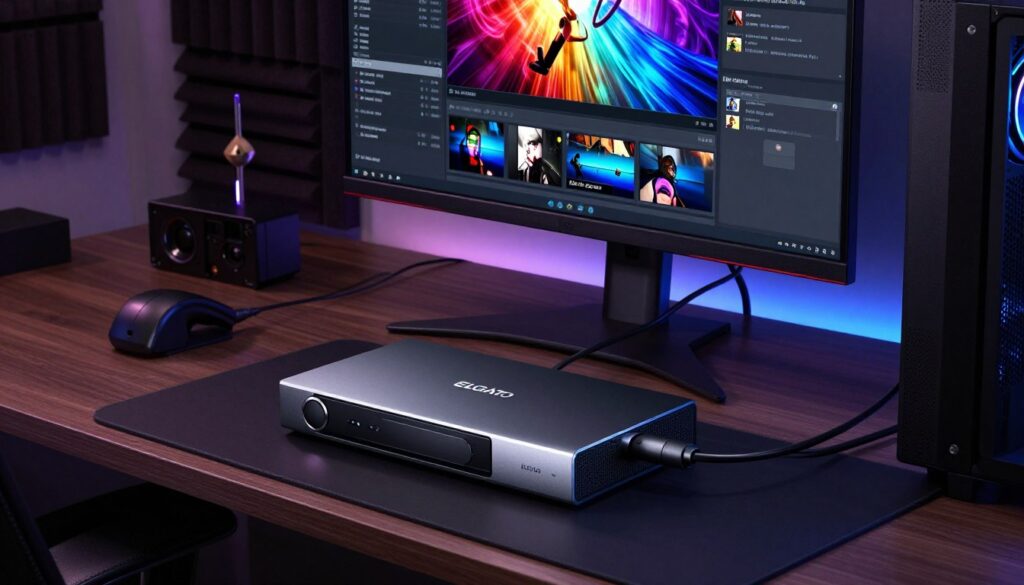
Managing Audio and Video Tracks for Professional Editing
I organize my workflow so every recorded track is ready for quick, professional edits. I export my video and audio as AAF files so Adobe Premiere and Vegas Pro read the files without extra conversion.
My capture card lets me add my mic as a separate track. That makes it simple to balance voice levels while I edit the game footage.
I use the cached gameplay feature to slide back in time and grab moments I missed during a live stream. That saves me hours of replays and keeps my best clips handy.
Managing Switch gameplay gets easier when video and audio are separate. I check recording formats before a session to ensure they match my editing suite. That reduces import time and keeps projects moving.
Tip: I preview tracks in Open Elgato Studio and in OBS so my stream and local record match. Proper formats and clean separation speed up final editing and boost production value.
Futureproofing Your Content Creation Workflow
Futureproofing my studio means choosing gear that still makes sense five years from now.
I agree with EposVox that the 4K Pro is one of the most forward-looking options for passthrough. Investing in a forward-thinking capture card keeps my setup ready for new formats.
By picking a device that supports 8K passthrough and HDMI 2.1, I make sure my rig stays relevant as consoles evolve. This also preserves HDR fidelity when I stream or record.
I use my capture card to record Switch gameplay in high quality today. That same hardware gives me headroom for higher video standards without a full rebuild.
“I see the 4K Pro as a long-term choice that reduces upgrade cycles for serious creators.”
My workflow centers on flexibility. Multiple cards let me swap inputs, route audio, and switch sources for new game releases without downtime.
| Priority | Why it matters | Practical step |
|---|---|---|
| 8K passthrough | Keeps system future-ready | Choose devices with 8K compatibility |
| HDMI 2.1 & HDR | Preserves color and frame rates | Use certified HDMI 2.1 cables and set HDR profiles |
| Modular cards | Adapts to new streaming trends | Keep spare cards for multi-source routing |
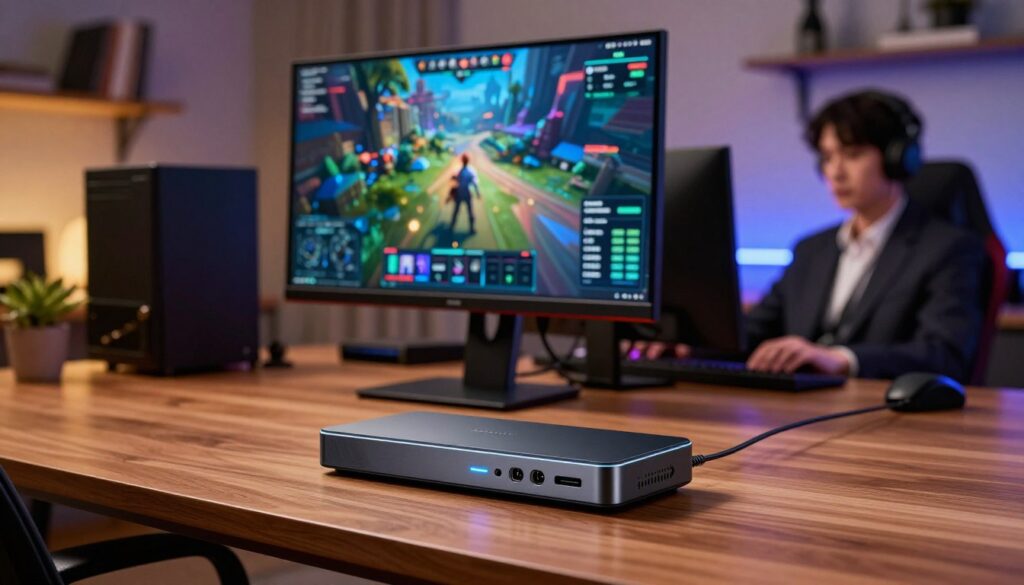
Selecting the Right Device for Your Needs
A well-matched device keeps my gameplay, recording, and stream in perfect sync.
I recommend the 4K S capture card, priced at $159.99, as the best product for anyone who wants to record Switch 2 gameplay in high quality.
When I choose hardware, I always check detailed information to make sure the captured resolution frame and resolution frame rate match my PS5 or Xbox Series settings.
I build my setup around trusted models like the HD60 and 4K Pro. They offer reliable performance for high-quality gameplay recording and help reduce latency when I record or stream.
I also use open elgato studio to manage video and HDR settings before the feed reaches OBS. That keeps my recorded files clean and ready for edits.
| Device | Best for | Key spec |
|---|---|---|
| 4K S | Switch 2 streaming | 4K60 HDR, $159.99 |
| HD60 | Full HD streaming | 1080p60, low latency |
| 4K Pro | Pro recording | 4K passthrough, 4K60 HDR |
Essential Tips for Perfect Capture Quality
Before I hit record, I run a short checklist to lock in stable levels and rates. This saves time and prevents annoying sync issues later.
Use a high-quality HDMI link to keep the connection steady during long game capture sessions. A reliable link cuts packet loss and reduces latency during live play.
I always verify the resolution frame rate and confirm frame rate combinations are supported by my device. Matching the captured resolution frame to the game stops dropped frames and odd judder.
Open Elgato Studio helps me monitor audio and video levels in real time. I check mic tracks and the game feed so editing goes faster and final output sounds balanced.
Before a new project, I read detailed information on the Elgato website about formats and supported rates. Doing that ensures my PS5 recordings use the right 4K60 HDR profile and the proper settings for clean recording.
- Test your setup for a minute to catch issues early.
- Keep firmware and the app up to date on your elgato capture card.
- Record a short sample to verify video, audio, and editing formats.
Conclusion
To conclude, thoughtful gear and clear workflows keep my recordings sharp and my reactions intact.
I explored how passthrough technology supports a competitive edge and high-quality video in my streaming setup. Using reliable hardware like Elgato makes it easy to record with perfect sync and near-zero input lag.
Keeping audio and video tracks separate improved my edits and gave viewers a cleaner experience. Picking the right device for a Switch or a high-end PC streamlined my workflow and cut setup time.
Now I feel confident in optimizing my streaming rig to produce high-fidelity gameplay that stands out in a crowded market.
FAQ
What is passthrough and why does it matter for live gameplay?
How does the signal split between my console, display, and recorder?
Will using passthrough add input lag to my gameplay?
How does HDMI version affect my setup?
Can I record high-fidelity gameplay at 4K60 HDR without sacrificing performance?
Are modern consoles like PS5 and Xbox Series compatible out of the box?
What about integrating a Nintendo Switch?
Can I capture gameplay from mobile or handheld devices?
How do I optimize OBS for streaming with a recorder in the loop?
What’s the best way to manage audio and video tracks for editing?
How do I futureproof my content creation workflow?
How do I choose the right device for streaming, recording, and editing?
What practical tips help me get perfect visual and audio quality?

Lucas Bennett is a video capture and streaming expert who specializes in helping creators build high-performance setups. He shares in-depth reviews, setup guides, and optimization tips focused on capture cards and real-time video production, making complex tech simple and effective.