I have tested capture cards since 2008 and built my workflow around reliable hardware and clean footage. In this article, I compare two top brands so you can pick the best card for your game and streaming needs.
I’ll cover how internal and external devices affect frame rate, fps, latency, and system load. I explain why a 4K60 device might need a PCIe x4 slot, and how CPU or GPU encoding changes your recording approach.
Whether you want HDR support or simple 1080p captures, understanding the differences in hardware and software saves time and money. My goal is to make the choice easy for creators who record, stream live, or edit videos for YouTube and Twitch.
Key Takeaways
- I compare capture cards and cards for live streaming and local recording.
- 4K60 options often require specific motherboard slots and higher encoding power.
- CPU vs GPU encoding impacts performance and required system specs.
- Latency and frame rate matter most for competitive game streaming.
- My tests since 2008 focus on real-world footage and workflow efficiency.
Understanding the Role of Capture Cards
When I set up a recording system, the capture path is the first thing I lock down. The right capture hardware shapes how clean your footage will be and how much load your CPU carries.
Internal or External?
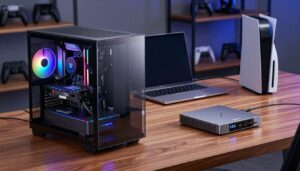
Internal cards plug into a motherboard. They offer lower latency and steady bandwidth for high-frame captures. That makes them a smart pick if you want top performance for gaming and high fps.
External cards connect over USB or Thunderbolt. They are portable and simple to move between devices. I use them when I need flexibility or to record from consoles and laptops.
The Importance of Passthrough
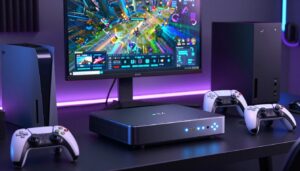
Passthrough sends an uncompressed signal to your monitor so you can play with zero latency. It keeps the original frame rate visible while the card compresses a separate stream for recording or live content.
| Feature | Internal | External |
|---|---|---|
| Connection | PCIe to motherboard | USB / Thunderbolt |
| Latency | Lowest | Low (depends on bus) |
| Portability | Limited | High |
| Best use | High-performance gaming capture | Multi-device or console recording |
- The number of ports and software support will shape your workflow.
- In a two-PC setup, a capture card moves work off the gaming rig to keep fps steady.
Elgato vs AVerMedia: A Brand Comparison
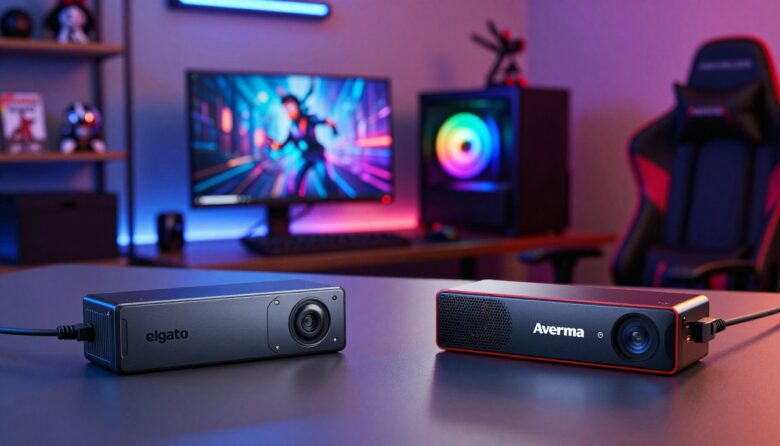
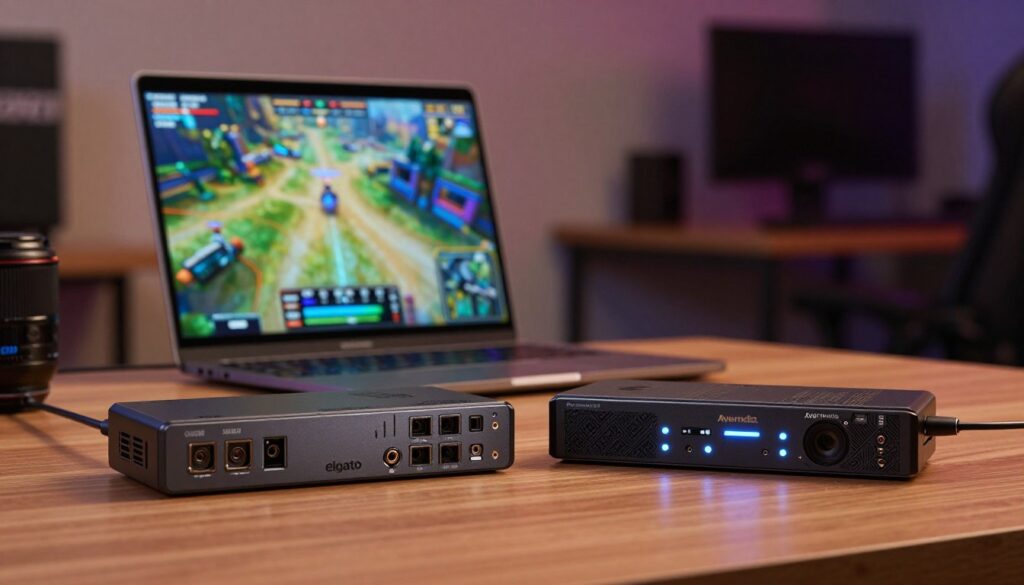
I’ve tested both flagship internal cards to see how design and software affect real-world capture. The AVerMedia Live Gamer 4K (GC573) and the 4K60 Pro MK.2 aim at creators who need 4K HDR and stable fps.
Both brands ship solid hardware and dedicated apps. AVerMedia’s RECentral is tuned for low latency, while the 4K Capture Utility favors multi-app workflows and broad compatibility. I reviewed each card with identical 4K sources to compare footage and frame delivery.
- Performance: Live gamer models often deliver near-identical recording quality at high bitrates.
- Cooling & build: Some live gamer cards include active cooling, which helps long sessions.
- Software: The app ecosystem is the real deciding factor for new gamers.
In short, the differences in raw video quality were small in my tests. I made several comparison videos so you can judge how each card handles frame rate, HDR, and long recording sessions before you buy.
Key Technical Differences to Consider
Different cards target different workflows. I focus on three areas that change your setup and results: resolution and frame rate, HDR handling, and PCIe bandwidth needs.
Resolution and Frame Rate Support
High refresh support matters for competitive play. Some models in the live gamer line capture up to 240Hz at 1080p, while many 4K60 cards capture at 60 fps for true 4K recording.
That means if you want 1440p at 144 fps or 1080p at 240 fps, choose a card rated for those modes. Higher fps reduces motion blur and keeps latency low for fast games.
HDR Compatibility
HDR recording can be inconsistent across hardware and drivers. I found that certain 4K60 devices do not record HDR with some AMD GPUs, so check compatibility before you buy.
If HDR matters, confirm your GPU and the card’s software can pass and record high dynamic range footage without color shifts.
Bandwidth and PCIe Requirements
Internal cards often need a PCIe x4 slot, but top-tier models may require x8 or x16 to run 4K60 HDR without bottlenecks.
I always check the number of PCIe lanes on my motherboard and whether the CPU or GPU will handle encoding. Low lanes can cause dropped frames and encoding errors during long recording sessions.
| Spec | High‑fps modes | HDR support | PCIe requirement |
|---|---|---|---|
| Typical top models | 1080p@240Hz, 1440p@144Hz | Yes (varies by GPU) | x4 to x16 (check model) |
| 4K60 devices | 4K@60fps | Yes, but limited on some AMD setups | x8 or x16 recommended for HDR |
| External units | Up to 120–240Hz via USB/Thunderbolt | Often supported | Depends on bus (Thunderbolt ≈ high) |
- The avermedia live gamer series often leads in high-fps capture.
- Match your cpu and gpu to the card to avoid performance issues.
- Plan PCIe lanes and check the card’s software for HDR support before recording long sessions.
Performance and Latency in Modern Gaming
Latency is the invisible factor that decides whether your stream feels smooth or sluggish in real time. It is the delay between the capture source and the preview window, and it can throw off mic sync and timing while you play.
A single-PC setup puts both the game and the capture load on your CPU and GPU. That can cause stuttering or dropped frames if the system falls short of the card maker’s minimum specs.
Many streamers move to a two-PC setup to split the work. That keeps fps steady on the gaming rig and leaves capture and encoding to a second machine.
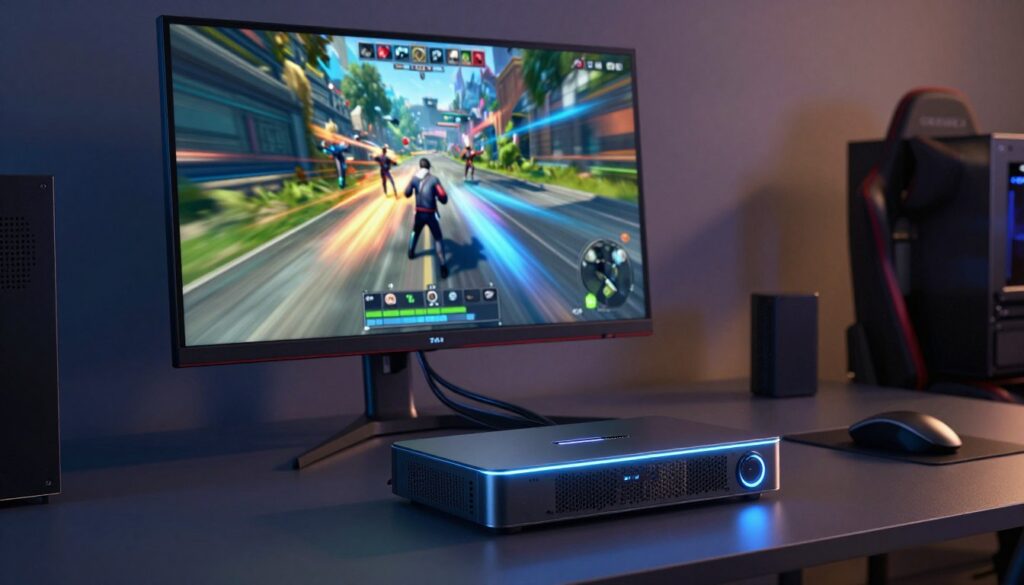
- Low latency lets you play by watching the software preview with almost no delay.
- Hardware encoding on the card is the best way I’ve found to reduce CPU strain and keep performance high.
- High latency can cause audio sync problems between your mic and captured video.
- I’ve seen portable cards fail and produce corrupted footage—reliable hardware matters during long live sessions.
In practice, pick a card that supports hardware encoding and matches your CPU/GPU. That is the most reliable way to avoid performance problems and keep your footage smooth for viewers.
Software Ecosystems and User Experience
How software behaves day to day matters as much as hardware. I evaluate whether apps get you streaming fast, handle HDR without color shifts, and stay stable during long sessions.
Comparing RECentral and 4K Capture Utility
I test both apps for multi-platform streaming, HDR setup, and preview latency. One tool lets you push streams to Twitch, YouTube, and Facebook at the same time. The other supports multi-app use, so you can run OBS alongside the utility for flexible workflows.
What I care about: instant preview, clear HDR options, and minimal crashes. Instant Gameview-style preview lowers perceived latency and keeps your gameplay in sync with the captured footage.
- Platform streaming: multi-destination support speeds up broadcasts.
- Multi-app use: running OBS with the capture utility gives production freedom.
- HDR and resolution: both ecosystems record HDR, but ease of setup varies.
- Stability: long sessions favor software that stays responsive over time.
In short, the live gamer software choices are close. I pick the one that fits my workflow: multi-platform broadcasting or multi-app flexibility, and I always test HDR and fps handling before a long stream.
When to Avoid Standalone Recording Devices
Standalone recorders promise simplicity, but I’ve found they can fail without warning. Some units write directly to an SD card and look perfect for travel. Yet I’ve lost hours of footage when they produced corrupted files with no clear error.
Troubleshooting is awkward. Many devices use flashing lights instead of readable messages. That makes it hard to know if a failed capture was a card issue, a file-system error, or hardware trouble.
If you run a powerful single-PC setup, the safer way is to record with software like OBS. That method uses your cpu and disk for stable recording and gives clear logs if something goes wrong.
- Why avoid standalone devices: risk of corrupted footage and opaque errors.
- When they work: useful for quick, portable captures but not for critical projects.
- Best practice: use a standard capture card connected to a PC or record with software for reliable results.
Final Verdict on Which Brand Offers the Best Value
Based on real recordings and latency checks, here’s the final take on which brand suits most streamers.,
avermedia live gamer models offer strong value when you need 4K60 and reliable HDR capture. Their low latency and solid passthrough make them ideal for competitive game play and high-frame recording.
At the same time, the other brand remains a top pick for creators who want simple, polished software and a minimal setup to record clean footage at 1080p.
Ultimately, choose the card that matches your CPU, GPU, and streaming goals. Both lines deliver great results; pick the one that fits your hardware and workflow and you’ll be ready to capture quality video fast.
FAQ
What is the main difference between capture cards from Elgato and AVerMedia?
Do internal and external capture cards affect gaming performance differently?
How important is passthrough for live streaming and gameplay recording?
Which card should I pick for 4K60 capture and streaming?
Is HDR capture worth it for my content?
How much does bandwidth and PCIe requirement matter when choosing a card?
What impact do capture cards have on FPS and latency?
How do software ecosystems compare for capturing and streaming?
Should I use RECentral or 4K Capture Utility for recording?
When should I avoid standalone recording devices?
Can capture cards use hardware encoding to reduce CPU load?
Will my GPU affect capture quality or performance?
How do I choose the right capture card for content creation vs competitive gaming?
Are there common problems I should watch for with capture hardware?
Can I record high-quality footage without a powerful PC?
What should I check when comparing capture card value?

Lucas Bennett is a video capture and streaming expert who specializes in helping creators build high-performance setups. He shares in-depth reviews, setup guides, and optimization tips focused on capture cards and real-time video production, making complex tech simple and effective.