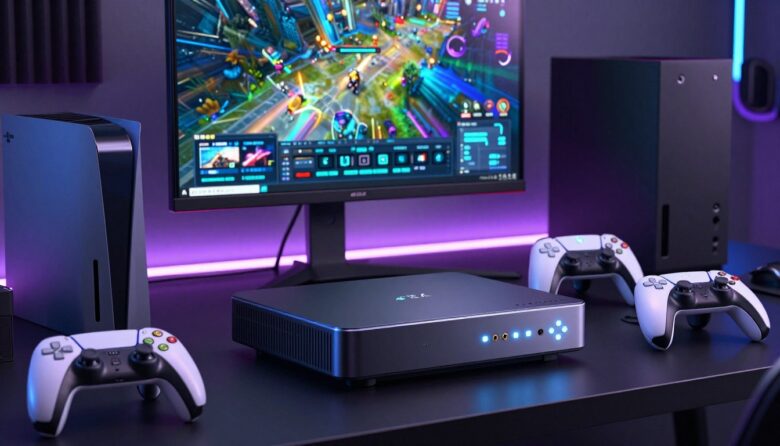
I’ve spent years testing capture devices to help streamers get pro-level gameplay footage without the guesswork.
In 2025, consoles like the Xbox Series X push high resolution and frame rates that demand the right hardware. Using a dedicated device offloads encoding, so you keep smooth performance while you stream.
The guide ahead walks you through options from internal cards to portable USB devices. I focus on performance, software like OBS compatibility, passthrough HDMI, audio handling, and real-world value.
Whether you’re a beginner or a pro, choosing the right setup is the first step to reliable content creation and higher quality streams.
Key Takeaways
- I tested many devices to find those that deliver steady fps and low latency.
- Proper hardware keeps your console gameplay smooth while you record or stream.
- Look for solid software support and passthrough HDMI for HDR and high frame rates.
- Portables and internal options suit different budgets and workflows.
- Audio input and software like OBS are key to clean, professional footage.
Understanding the Role of Capture Cards
Let’s unpack what happens to your video and audio when it moves from console to PC.
I see a capture card as an electronic bridge. It takes raw HDMI input and compresses both sound and picture into formats your streaming software can handle.
That compression lowers CPU load on your main machine and helps keep gameplay smooth while you record or stream.
How devices process signals
Modern devices, like the AVerMedia Live Gamer series, decode the signal, compress it, and send a steady stream to your recorder or encoder.
Doing this on a dedicated device reduces delay and frees up system resources for higher frame rates and smoother streams.
Internal versus external setups
Internal cards plug into a PCIe slot on your motherboard for the lowest latency. External cards use USB, which adds flexibility for laptops and mobile rigs.
I often recommend matching the form factor to your workflow: pick internal for a dual-PC studio, or external if you move between setups.
| Type | Connection | Use case |
|---|---|---|
| Internal | PCIe | Low latency, fixed PC rigs |
| External | USB | Portable setups, laptops |
| Standalone | SD / Internal storage | Record without a computer |
- A capture card manages the data so your software can record or stream smoothly.
- These cards offload encoding so your console and PC run cooler.
- Whether internal or external, the goal is consistent, high-quality input for viewers.
Why You Need a Dedicated Device for Console Streaming
If you stream from a console, a dedicated device lets you split gaming and broadcasting work cleanly.
Offloading encoding to a separate unit keeps your gameplay smooth. I use a hardware encoder to prevent frame dips during long sessions.
A capture card is the bridge in a two-PC setup. One machine runs the game, the other handles streaming and video processing.
“Using a dedicated device saved me time and gave consistent footage without taxing my main rig.”
Built-in console tools often lack fine audio control and robust software options. A dedicated device gives better audio routing and cleaner video for your content.
- I recommend using a dedicated solution to avoid performance hits on your console or PC.
- For two-PC studios, the device is the vital link that moves video to your streaming machine.
- Dedicated units help ensure professional-looking streams on platforms like Twitch.
| Use Case | Benefit | Typical Setup |
|---|---|---|
| Single-PC | Simplified wiring, software encoding | External device + streaming software |
| Two-PC | Zero gameplay lag, dedicated encode | Console → device → streaming PC |
| Portable | Record on the go, standalone options | External device, laptop |
Essential Features for Next-Gen Gaming
When you want pristine gameplay video, the signal path matters more than you might think.
HDMI 2.1 is the linchpin for passing high resolution and high frame rate feeds from modern consoles to your monitor and recorder. Without full hdmi 2.1 support, you risk dropping resolution or frame rate and losing visual fidelity.
I look for devices that handle high bandwidth and robust hdr support so colors stay true in live streams and recorded footage.
The importance of HDMI 2.1 for high resolution
Next‑gen systems like the xbox series demand capture cards that support hdmi 2.1 for smooth fps and frame rate headroom. Passthrough is essential so you can play at top settings while the device sends video to your software.
| Feature | Why it matters | Typical impact |
|---|---|---|
| HDMI 2.1 | High bandwidth for high resolution and frame rate | Play at max settings while preserving footage quality |
| HDR support | Preserves color depth and contrast | Vibrant, accurate streams and recordings |
| Passthrough | Uninterrupted gameplay display | No input lag for competitive gaming |
- I favor devices from the avermedia live gamer line for reliable hdmi support and steady throughput.
- Check that the card and your software both support the target resolution and frame rate before buying.
My Top Picks for the Best 4K Capture Card
Below are the devices I rely on when I need clean footage, low latency, and simple setup.
AVerMedia Live Gamer Ultra S — $139.99. I picked this as my top pick because it balances price and performance. It supports 4K60 HDR recording and gives zero-lag passthrough so your gameplay stays smooth while you stream.
ShadowCast 2 Pro — $149.99. This device impressed me in tests for low-latency 4K60 capture and handheld gaming support. Setup is fast, and the passthrough keeps your monitor responsive during long sessions.
“I tested these units extensively to make sure they deliver the high frame rate and HDR support modern gamers demand.”
| Model | Price | Resolution | Passthrough | Use case |
|---|---|---|---|---|
| AVerMedia Live Gamer Ultra S | $139.99 | 4K60 HDR | Zero-lag | Streaming, pro content |
| ShadowCast 2 Pro | $149.99 | 4K60 | Low latency | Portable, handheld gaming |
- I tested these capture cards to ensure high-quality footage and steady fps.
- Both support hdmi passthrough and are easy to integrate with streaming software.
- Choose the Ultra S for value or the ShadowCast 2 Pro for versatile, on-the-go setups.
High Performance Options for Competitive Players
When split-second inputs decide matches, your hardware must keep up.
Competitive players need hardware that keeps input lag low and frames steady under pressure. I recommend devices that support high refresh rates and robust passthrough so you can play at peak settings while recording clean footage.
High refresh rate benefits for fast-paced titles
High refresh support matters in shooters and racing games. It lets you play at 120Hz or higher while the device records a smooth 60 FPS stream.
That split keeps frame rate consistency in your gameplay and prevents stutters in recorded video. Low latency is critical so your inputs and the stream stay in sync.
HDR support for visual fidelity
HDR keeps colors and contrast true during streaming. For me, a model like the AVerMedia Live Gamer Ultra 2.1 ($209.99) hits the right mix of hdmi 2.1 support, HDR, and pro-grade performance.
- Supports HDMI 2.1 passthrough for high frame rates.
- Minimizes latency so competitive play stays responsive.
- Works with common software and preserves footage quality for edits.
Internal Solutions for Dual PC Setups
For dual‑PC streamers, an internal unit turns the streaming rig into a dedicated encoder and keeps feeds stable.
I prefer internal options because they install on the PCIe bus. That direct link avoids USB bandwidth issues that can plague long streaming sessions.
The Elgato Game Capture 4K Pro ($269.99) fits a PCIe x4 slot and is built for dual‑PC setups. It gives reliable passthrough and steady fps for serious gaming and video work.
The AVerMedia Live Gamer Duo ($229.99) adds dual HDMI inputs so you can record gameplay and camera simultaneously. That makes producing pro content and synced footage much easier.
- Internal devices offload encoding to the streaming PC to keep your gaming PC at peak performance.
- They provide consistent video and audio sync for long sessions where quality matters.
- Dual‑input models like the Live Gamer Duo let you combine sources without extra hardware.
| Model | Price | Interface | Key benefit |
|---|---|---|---|
| Elgato Game Capture 4K Pro | $269.99 | PCIe x4 | Stable passthrough, steady fps |
| AVerMedia Live Gamer Duo | $229.99 | PCIe x4 | Dual HDMI inputs for gameplay + camera |
Setting up an internal device takes a bit more effort, but the performance payoff for stream quality and reliability is clear in my experience.
Portable Devices for On-the-Go Content Creation
A compact unit that records to removable media makes content creation much simpler on the road.
Standalone recording without a computer
I often travel to events and need a setup that moves fast. Small devices let me record gameplay directly, so I skip lugging a laptop and extra cables.
The Elgato 4K60 S+ ($399) deserves mention for standalone 4K60 HDR recording to an SD card. Recording to removable media saves time and simplifies edits after the event.
These units remain compact and reliable. Even in standalone mode they keep fps steady and preserve hdr quality for clean footage.
“Recording straight to an SD card changed how I work on location.”
- Works with most consoles via hdmi and USB when needed.
- Compact design fits a small bag for events or studios.
- Maintains high video quality while reducing setup time.
| Model | Standalone | Resolution | Best use |
|---|---|---|---|
| Elgato 4K60 S+ | Yes (SD card) | 4K60 HDR | On-site content creation |
| Portable USB Device A | No (PC required) | 1080p60 | Lightweight streaming |
| Standalone Recorder B | Yes (internal storage) | 4K30 | Event highlights |
Budget Friendly Choices for Beginners
You can launch a solid streaming setup with affordable gear that still handles 1080p60 video well.
I recommend the Elgato Game Capture Neo at $130.48 for anyone starting out. I chose it because it’s simple to use and gives reliable 1080p60 footage for console gameplay and streaming.
Key advantages include easy software setup, steady fps during long sessions, and 4K passthrough so your monitor stays at high resolution while you stream.
“Starting with a reliable, user-friendly device lets you focus on improving your content instead of troubleshooting.”
- Great for beginners who want minimal setup and dependable video.
- Works well with common streaming software and basic audio routing.
- Affordable price point with features that scale as you learn.
| Model | Price | Resolution | Best use |
|---|---|---|---|
| Elgato Game Capture Neo | $130.48 | 1080p60, passthrough to 4K | Beginner streaming, console setups |
| Portable USB Entry | $79–$99 | 1080p60 | Lightweight streaming, travel |
| Standalone SD Recorder | $159–$199 | 1080p60–4K30 | On-site content capture |
Evaluating Latency and Passthrough Quality
Latency and passthrough quality directly shape how responsive your gaming feels while you record.
Evaluating latency is critical when you choose a capture card. I test input delay so the video on screen matches my controller movement in real time.
Passthrough sends the original HDMI source to your monitor uncompressed. That lets you play without added lag even while the device works in the background.
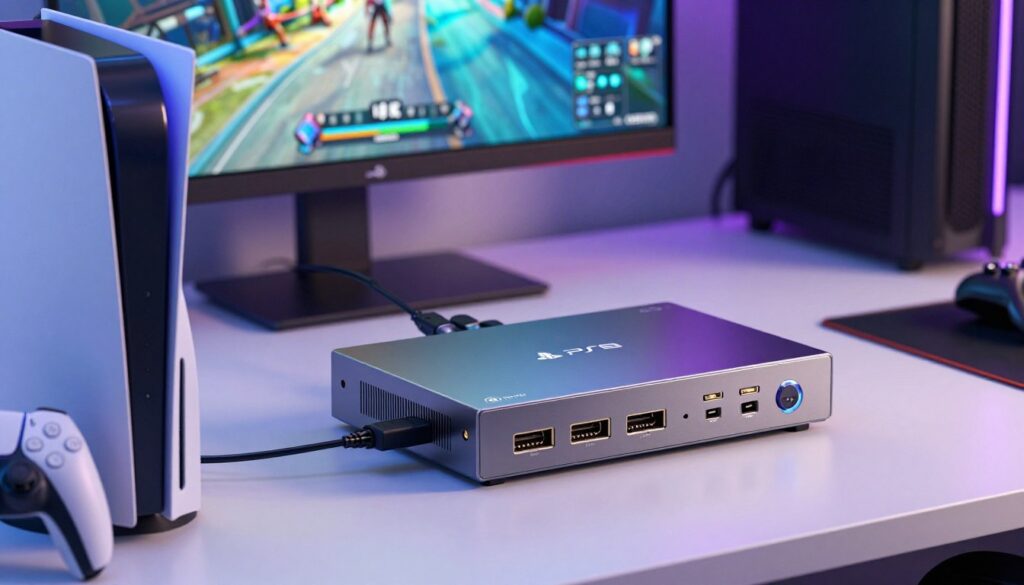
I look for zero-latency passthrough on devices like the AVerMedia Live Gamer models. Good passthrough keeps fps and HDR resolution intact so gameplay and streaming stay smooth.
- I prioritize devices that preserve resolution and frame rate while capturing footage.
- Audio and video input must be handled cleanly so syncing stays reliable over long sessions.
- Low latency units are essential for competitive gaming and high-quality streaming.
“A solid passthrough means I don’t notice the device during play — the stream gets the data, and I keep winning.”
| Latency | Passthrough | Use |
|---|---|---|
| Low (<5 ms) | Zero-lag | Competitive play |
| Moderate (5–20 ms) | Good | Casual streaming |
| High (>20 ms) | Noticeable lag | Not recommended |
Software Compatibility and System Requirements
Before you buy hardware, check that your PC meets the system needs to handle high-bandwidth video and long sessions.
I always test drivers, USB lanes, and PCIe bandwidth before installing a new capture card. Low bandwidth causes dropped frames and poor footage.
Use reliable streaming software like OBS Studio. OBS works with most devices and gives flexible routing for mic and game audio. Some cards still need vendor apps to enable hdr or higher frame rate modes.
Keep your OS and device drivers up to date. Firmware updates often add passthrough fixes or better fps handling. If you use a dual‑PC setup, verify the PCIe slot speed and USB port type to avoid bottlenecks.
- Confirm that your GPU and CPU can encode the target video without hitting 100%.
- Check vendor docs for specific capture cards and software like OBS compatibility.
- Test a short recording to validate footage, audio sync, and frame rate before a long stream.
“A few minutes testing saved me hours of troubleshooting during a live stream.”
| Requirement | Why it matters | Quick check |
|---|---|---|
| CPU & GPU | Prevent overloaded encoding and frame drops | Monitor load during a test record |
| PCIe / USB bandwidth | Ensures steady throughput from device to PC | Use PCIe x4 or USB 3.1+ ports |
| Drivers & firmware | Unlock HDR, passthrough, and stability fixes | Install latest from vendor (eg. AVerMedia Live Gamer) |
Common Pitfalls When Setting Up Your Hardware
Small mistakes during setup can cost you hours of troubleshooting and poor footage.
I run into two recurring problems more than any others. The first is PCIe bandwidth limits. If your internal slot shares lanes or runs at x1 instead of x4, the device may not sustain high fps or HDR passthrough. Check your motherboard manual and move the unit to a full‑speed slot when possible.
The second issue is GPU encoding conflicts. Some graphics drivers or vendor software override encoder settings and clash with recording software. That can cause dropped frames, stuttering video, or failed streams. I test each setup with a short recording and different games to confirm stable performance.
Bandwidth limitations on PCIe slots
Tip: Verify slot speed and lane sharing before installation. An internal device needs PCIe x4 (or higher) for reliable high-bandwidth video. If you run multiple expansion cards, reposition to restore throughput.
GPU encoding issues with specific graphics cards
Tip: Update drivers and toggle hardware encoding options in your streaming software. If problems persist, try disabling one vendor overlay or use software encoding temporarily to isolate the conflict.
- Confirm PCIe lane allocation in your motherboard manual.
- Test recording with several games to spot inconsistent fps.
- Check for driver or software conflicts between GPU and recording tools.
- Use USB 3.1+ ports for external devices and avoid hub bottlenecks.
- Contact vendor support (e.g., AVerMedia Live Gamer) if odd behavior continues.
| Problem | Cause | Fix |
|---|---|---|
| Dropped frames | Insufficient PCIe/USB bandwidth | Move to x4 slot or use native USB 3.1 port |
| Stuttering video | GPU encoder conflict with software | Update drivers, toggle encoder, test software encoding |
| HDR/passthrough loss | Wrong HDMI mode or firmware | Enable HDR in vendor app, update firmware |
“Proper hardware management lets you focus on gameplay, not troubleshooting.”
Comparing Internal Versus External Form Factors
A simple trade-off exists: raw performance versus mobility when selecting a capture device.
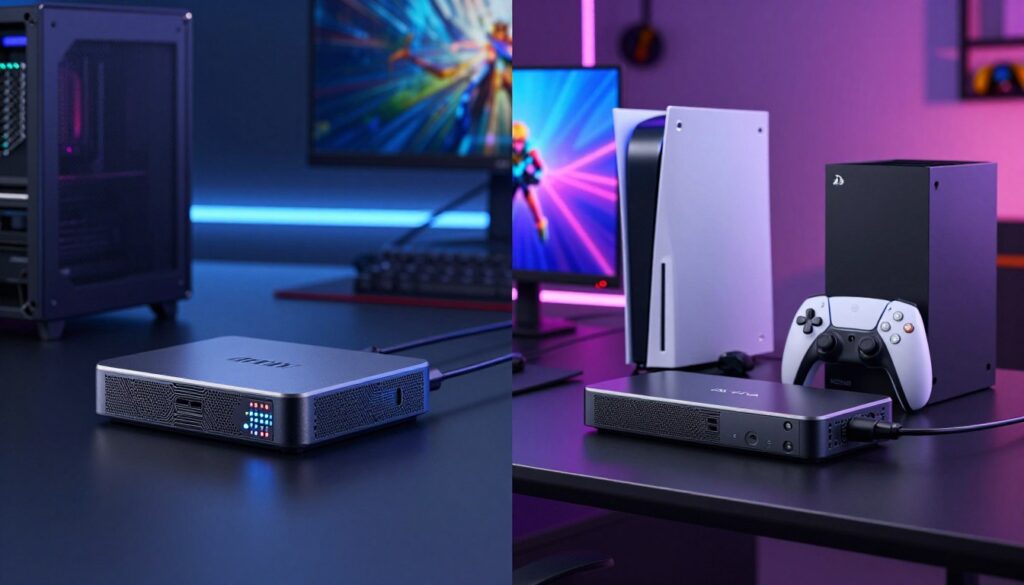
Internal units usually sit on the PCIe bus. I find they deliver lower latency and steady throughput for prolonged streaming sessions. That makes them ideal for pro desktop setups where consistent fps and HDR passthrough matter.
External devices shine for portability. I take them to events or move between rooms with a laptop and console. They give flexibility without needing to open a PC, and many support the same resolution and frame rate options as internal models.
Both form factors work well with modern software and hdmi pipelines when your system meets the requirements. HDR support is common across devices, so visual quality need not be a trade‑off.
“Choose portability if you travel; pick internal if you demand the lowest latency and the most stable throughput.”
- I recommend internal for fixed, pro rigs and external for travel or laptop users.
- Verify PCIe lanes or USB bandwidth to avoid dropped frames.
- Check vendor notes for features — I often refer to avermedia live gamer specs when testing passthrough and latency.
| Form Factor | Typical Connection | Strength | Best for |
|---|---|---|---|
| Internal | PCIe x4+ | Lower latency, stable throughput | Pro desktop streaming, dual‑PC rigs |
| External | USB 3.1 / USB-C | Portable, easy setup | Travel creators, laptop use, consoles |
| Standalone Recorder | SD / internal storage | No PC needed for recording | On‑site event capture |
Final Thoughts on Choosing Your Capture Setup
Picking gear for consistent gameplay and clean streams is a personal decision, not a one-size-fits-all choice.
I recommend starting with a device that offers reliable passthrough and HDR support so your gameplay looks great for viewers. Prioritize low latency and steady passthrough to keep inputs responsive and footage smooth.
Whether you go for a budget-friendly option or a higher-end internal unit, choose what fits your workflow and future plans. I’ve found models like avermedia live gamer and avermedia live offer solid HDR handling and stable performance for many setups.
Investing in quality hardware improves content and the streaming experience. Thanks for reading — I hope this helps you choose the right setup for your PS5 or Xbox Series X.
FAQ
What does a capture device actually do and how does it process video signals?
Should I choose an internal or external hardware configuration?
Why do I need a dedicated device for console streaming?
How important is HDMI 2.1 for next-gen gaming?
What should I look for in a top pick for recording PS5 and Xbox Series X gameplay?
Are there high performance options suited for competitive players?
How does HDR support affect my footage and streaming workflow?
Can I record without a computer using portable devices?
What are good budget-friendly choices for beginners?
How do I evaluate latency and passthrough quality?
What system requirements and software compatibility should I check?
What common pitfalls should I avoid when setting up hardware?
How do PCIe slot bandwidth limitations affect performance?
Can certain GPUs cause encoding issues with capture devices?
How do internal and external form factors compare for dual PC setups?
What should I consider when choosing a setup for content creation?

Lucas Bennett is a video capture and streaming expert who specializes in helping creators build high-performance setups. He shares in-depth reviews, setup guides, and optimization tips focused on capture cards and real-time video production, making complex tech simple and effective.