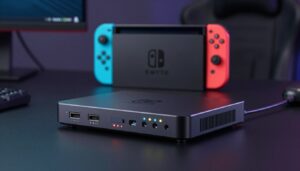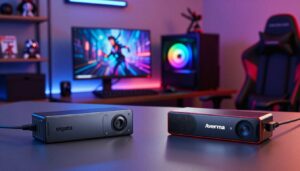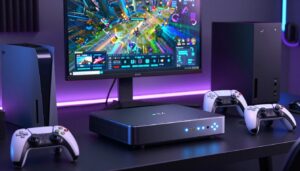
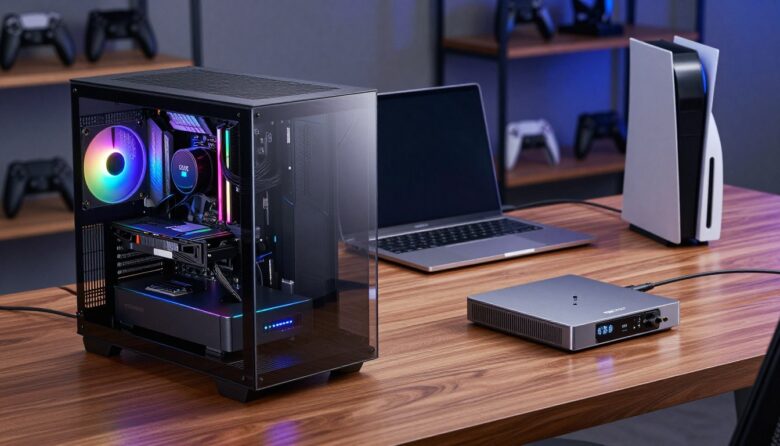
I want to make this choice simple. A video device converts HDMI or other signals into digital streams for recording and editing. I look for smooth recording and high quality when I plan a build.
I test PCIe 2.0 x4 options for fast desktop transfers. I also plug in USB or Thunderbolt units when I need flexibility. Modern units handle up to 4K60, and some pro models keep high refresh rates for 120fps gaming.
Brands like Game Capture Neo and Live Gamer matter to me because they balance resolution, HDR support, and stable stream performance. Whether I need an internal capture slot or a portable external solution, I weigh compatibility, HDMI routing, and my recording goals before I buy.
Key Takeaways
- Choose based on your desktop layout and portability needs.
- PCIe options suit high-throughput desktop setups.
- USB/Thunderbolt units offer plug-and-play flexibility.
- Look for 4K60 and high-fps support for future-proofing.
- Consider HDR handling and HDMI pass-through for live streaming.
Understanding the Role of a Capture Card
I rely on a dedicated video device to intercept console output and send a parallel feed to my streaming rig. This setup lets my main monitor get the primary signal while a copy goes to my computer for recording.
Passthrough technology is key. It sends gameplay to the display with almost no delay while the unit records in the background. That keeps my gaming smooth and my recordings synced.
I use units that also manage audio input and video output so my content stays crisp. Many Live Gamer setups handle multi-source streaming better than built-in console tools.
- A capture card intercepts signals from consoles to your PC for professional streaming.
- I depend on the device to keep audio and video aligned during long sessions.
- With HDMI passthrough, the console still drives the monitor while I record on the computer.
| Feature | Built-in Option | USB-connected Option |
|---|---|---|
| Installation | Installed on motherboard | Plugs into USB or Thunderbolt |
| Portability | Not portable | Highly portable |
| Latency | Lower latency for high frame rates | Good latency; depends on interface |
| Best use | Desktop streaming rigs | On-the-go recording and consoles |
Internal vs External Capture Card: Key Differences
What matters most to me is how the interface moves video from a console or PC into my recording software. The choice of connector shapes latency, throughput, and how much work my computer must do in real time.
Technical Interface Differences
PCIe slots connect directly to the motherboard and give a high-bandwidth path. I trust PCIe 2.0 x4 for steady transfers when I record high-resolution footage.
USB-based devices plug into a port for easy setup and portability. They trade a direct data lane for convenience and rely on good cables and ports to keep video stable.
Signal Latency Considerations
Latency is where I see the biggest split. Devices with a PCIe path usually add less delay, which helps when I stream fast-paced gaming at high fps. USB-linked units can introduce slight delays, so I test cable quality and port version to reduce time lost during processing.
- Latency: PCIe lower; USB depends on cable and port.
- Setup: PCIe is fixed; USB is flexible and portable.
- Use case: Competitive gaming favors minimal delay; on-the-go setups favor portability.
| Characteristic | PCIe (Desktop) | USB/Thunderbolt (Portable) |
|---|---|---|
| Typical latency | Very low (best for high fps) | Low to moderate (depends on cable) |
| Installation | Installed inside case on motherboard | Plug-and-play via port |
| Best for | Stable, high-quality recording and streaming | Switching consoles and mobile recording |
The Case for Internal PCIe Capture Cards
For a fixed desktop build, I favor solutions that sit on my motherboard for steady throughput.
PCIe stability matters when I need rock-solid video and low latency for high-fps gaming. Devices like the 4K Pro slot into x4, x8, or x16 lanes and keep data moving without relying on external hubs.
I also like that these units draw little power—many use under 5W—so they don’t add heat or stress to my system. That efficiency helps maintain consistent graphics performance during long recording sessions.
Benefits of PCIe Stability
Stability is why I pick an internal setup for serious streaming. Mounting directly to the board removes cables, cuts clutter, and minimizes failure points.
- I prefer an internal capture card because it mounts on the motherboard for maximum stability.
- The 4K Pro handles high-frame-rate recording and preserves quality with minimal latency.
- Unlike the Game Capture Neo, these options suit permanent, high-performance gaming rigs and appeal to every Live Gamer who wants a clean desk.
| Feature | Typical Value | Best For |
|---|---|---|
| Slot | PCIe x4/x8/x16 | Desktop streaming |
| Power | <5W | Long sessions |
| Performance | Low latency, high quality | Pro recording |
Why Choose an External USB Capture Card
Plug-and-play USB devices let me grab gameplay from a console or laptop without opening my PC. They connect via USB, so compatibility with most computers and laptops is simple to achieve.
I like that many options now handle 4K60 and even 120fps for fast-paced gaming. That keeps my video quality high when I stream or record intense sessions.
Portability matters to me. A Game Capture Neo or similar unit moves between systems easily. Live Gamer models also give me reliable performance when I travel or visit events.
- An external capture card gives flexibility to record on different machines.
- Installation is quick: plug the device via usb and set software settings.
- Some devices use external power so my computer power remains dedicated to graphics.
| Feature | Benefit | Best for |
|---|---|---|
| Connection | USB or Thunderbolt plug | Laptops and portable rigs |
| Performance | 4K60 / up to 120fps (select models) | High-fps gaming and streaming |
| Power | External power options available | Reduces load on computer PSU |
| Setup | No case opening; simple cable hookup | Quick event or multi-device recording |
Evaluating Your Resolution and Frame Rate Needs
Picking the right resolution and fps shapes the rest of my build choices. I first ask what my audience expects and what my hardware can sustain.
Capturing at 1080p
1080p60 is the practical standard for many streamers. It keeps file sizes manageable and still looks good on Twitch.
If you stream live, 1080p60 often gives the best balance of quality and stability. The Game Capture Neo handles this well for most consoles.
The 4K60 Standard
For YouTube and archival videos, I aim for 4K60. That higher resolution preserves detail and future-proofs content.
Note: capturing 4K60 demands a robust setup and steady throughput. The 4K X and similar pro models are built for this workload.
High Refresh Rate Gaming
Competitive gaming at 120fps or more needs an HDMI 2.1-capable solution. High-fps capture prevents motion blur and keeps gameplay smooth in recordings.
- Check fps support before you buy.
- Match your console or PC output to the capture specs to avoid sync issues.
- Consider HDR and throughput when you want top-tier quality.
| Target | Common Use | Requirement |
|---|---|---|
| 1080p60 | Twitch/live | Standard USB or entry cards |
| 4K60 | YouTube/archival | High throughput, pro models |
| 120fps+ | Competitive gaming | HDMI 2.1 support, 4K X-level gear |
Portability and Setup Flexibility
When I need a setup that travels, portability becomes the deciding factor. A good external capture card lets me move between my office and studio without opening a case.
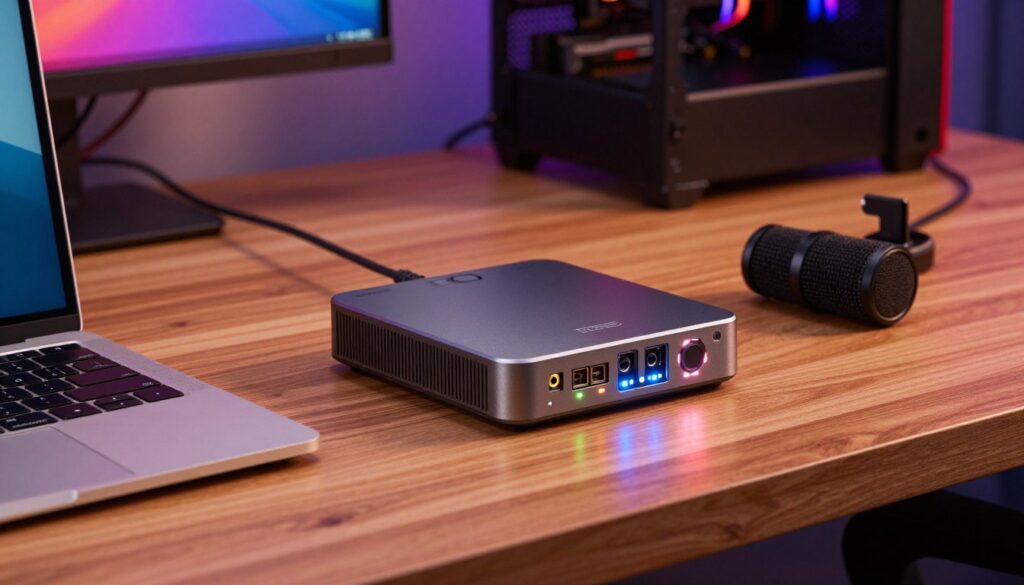
Plug-and-play devices shorten setup time. I can link a console to a laptop with a single USB cable and begin recording or streaming in minutes.
That flexibility means I don’t lose workflow when I travel for events or collaborate with friends. Still, the extra cable can clutter my desk, so I plan cable routing and use ties to keep things tidy.
- I value portability because it keeps my live gamer routine consistent across locations.
- Compact devices are easy to pack and require no complex installation.
- Good cable management prevents a messy workspace and fewer connection issues.
| Benefit | Typical Result | Best For |
|---|---|---|
| Portability | Move between PCs and laptops quickly | Traveling streamers |
| Setup speed | Plug-and-play via one cable | Event rigs and guest streams |
| Workspace | Needs cable management | Small desks and shared spaces |
Audio Input and Console Compatibility
Capturing both game sound and party chat makes a stream feel complete. I check audio paths early so I don’t scramble during a live session.
Managing Party Chat and Analog Audio
Many modern external devices include an analog audio input that picks up party chat from consoles like the PlayStation 5 or the Xbox Series X. I use that input to record friends’ voices alongside my game output.
The Chat Link Pro is a handy cable I rely on when bridging console chat to my stream setup. It routes controller voice into the line input so my audience hears party chat clearly.
HDMI passthrough is essential for monitoring. It keeps game audio on my display with no added delay while the unit mixes a clean stream output in the background.
- I use an analog audio input on my capture setup to record party chat and game audio together.
- The Game Capture Neo and Live Gamer options simplify signal routing on complex consoles.
- I always verify that the device supports my console’s audio format before a stream.
| Scenario | Recommended Tool | Notes |
|---|---|---|
| Xbox Series party chat | Chat Link Pro | Bridges headset mic into line input |
| PS5 multi-voice | Game Capture Neo | Analog input + HDMI passthrough |
| Live streaming | Live Gamer models | Mixes voice and game for single stream output |
Hardware Requirements for Your PC Build
Before I bolt parts into a case, I map out the slots and ports my build will actually use.
Motherboard check: I confirm there is an open PCIe x4, x8, or x16 slot if I plan to add an internal capture solution.
I also verify that my USB ports are fast enough. For a portable option, I prefer USB 3.0 or higher to handle high-throughput recording and 4K60 transfer rates.
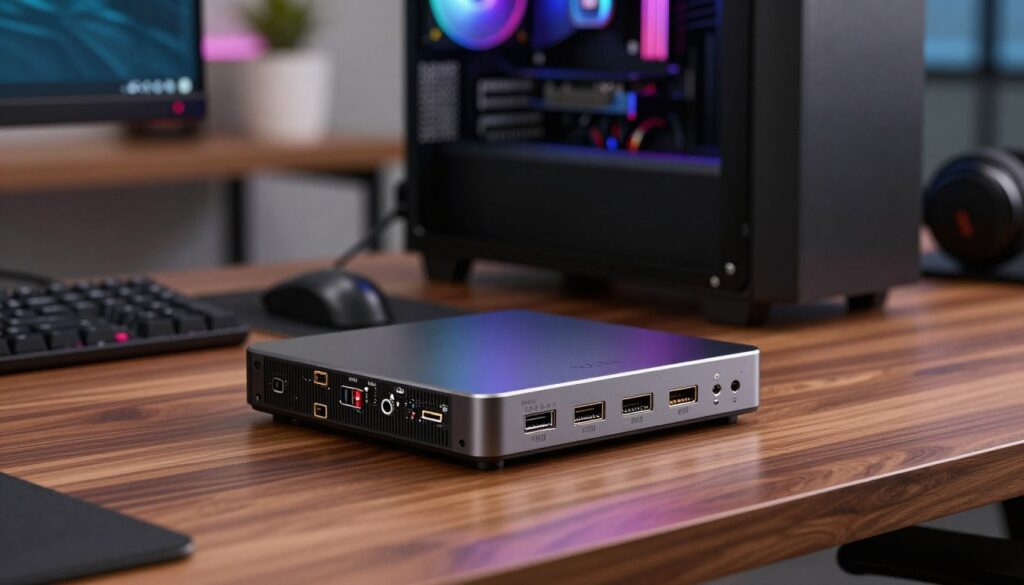
Computer specs matter. A powerful machine with a dedicated graphics card keeps fps steady during gaming and recording. I upgrade my GPU when I aim for 4K60 or HDR workflows.
Power is another check. Every Live Gamer should ensure the power supply can handle added load from an internal capture device and the graphics hardware.
- I confirm an open motherboard slot before installing a capture card.
- I use a strong graphics setup to avoid dropped frames while recording high resolution.
- I ensure USB and hdmi paths meet the device’s bandwidth needs for reliable streaming.
Performance Expectations for Streaming and Recording
Latency, compression, and USB bandwidth define real-world streaming performance more than marketing specs. I expect my external capture card to deliver steady fps and clean video while I play and record.
Interface matters: PCIe gives the lowest latency and best throughput for pro setups, while a USB device can hit 4K60 if the computer’s ports and cable are up to the task.
Hardware encoding on some models offloads H.264 work from my CPU. That saves processing headroom for graphics and keeps games running smooth during long recording sessions.
- I expect consistent performance for streaming to Twitch or recording high-quality content.
- The 4K Pro is my desktop go-to for top performance; the Game Capture Neo and Live Gamer suit portable needs.
- Stable connection via usb and a good cable keeps fps steady and audio in sync over time.
Setup tip: verify your output formats, HDR support, and compression options so the device handles signals the way you want capture quality and stream reliability.
Conclusion
Choosing the right setup boils down to whether I need mobility or raw throughput for my streams.
I find that capture cards split into two clear choices: portable units and fixed installs. For many, external capture cards offer fast setup and easy travel. For studio builds, internal capture gives steady bandwidth and lower latency.
Think about your target fps and the load on your computer before buying. Both types of cards can deliver pro-quality results when matched to your needs.
Every Live Gamer should weigh features, test for sync, and pick the options that suit their workflow. With the right hardware, your streaming and recording will look and feel better right away.
FAQ
What’s the main difference between a PCIe card and a USB device for game recording?
Will a USB device work with my Xbox Series or PlayStation without extra hardware?
Do I need a powerful PC to record 4K video at 60 fps?
Is there a noticeable delay when streaming with a USB device compared to a PCIe unit?
Can I record HDR content and keep HDR color when capturing gameplay?
How important is bitrate and codec selection for quality recordings?
Are external devices convenient for switching between multiple consoles and PCs?
What audio options should I check before buying a device?
Will my motherboard need extra drivers or special slots for a PCIe unit?
Can I stream and record at the same time without quality loss?
How do I handle high refresh rate gameplay while capturing footage?
Is portability worth sacrificing a bit of performance?
Which brands are reliable for long-term use and driver support?
How do I avoid dropped frames during long recording sessions?

Lucas Bennett is a video capture and streaming expert who specializes in helping creators build high-performance setups. He shares in-depth reviews, setup guides, and optimization tips focused on capture cards and real-time video production, making complex tech simple and effective.